An important part of storing any data is deciding on when it should be deleted, and for that Dataverse gives us bulk delete jobs. These have been around for a long time and haven’t obviously changed much over the years, but they’ve recently got a bunch of new improvements.
Microsoft have published a blog covering the new updates and I won’t go through it all again here, but I was interested to dive into what’s going on behind the scenes and what the impact is for some of these new options. One thing I’m not going into more but I think will be hugely useful is the option to add bulk delete jobs to solutions, so you can bake your data retention policies into your ALM processes rather than having to remember to apply them to each environment.
Error handling
If any records can’t be deleted by your bulk delete job for some reason, the details are logged to the bulkdeletefailure table so you can resolve the problem. This is surfaced in the UI on the “Run details” tab of the job with a link to the problem record.
When I tried this however, although I can see the number of failed records associated with the job, and I can see the details in SQL 4 CDS, it doesn’t render correctly for me in the UI. Hopefully this will get fixed soon though.
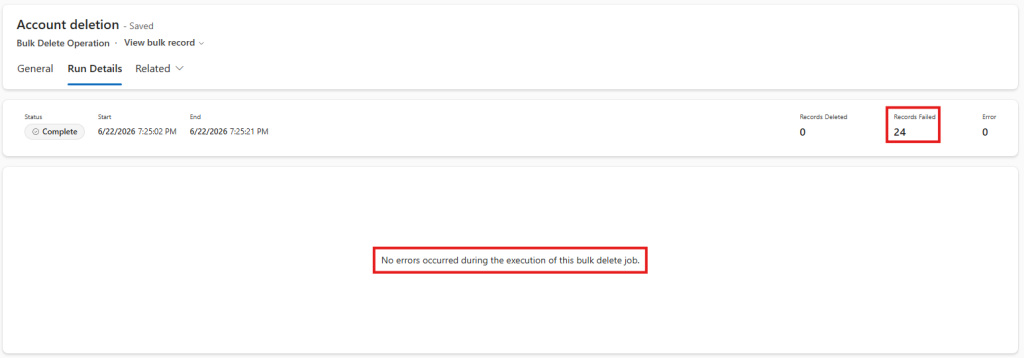
Interestingly, when I view the error details in SQL 4 CDS, it doesn’t list each individual record that failed. It appears to aggregate the errors together and includes a link to one of the records that failed with that error, e.g.:

Permanent deletion
As Dataverse can preserve details of deleted records to allow them to be restored again later, there is a cost in terms of processing time and storage space to keep this history which you might want to avoid. You may also have compliance reasons for wanting to ensure particular records are permanently deleted without an option to restore them.
This only has any impact if the Keep deleted Dataverse records option is enabled. You can enable it via the UI, or if you’re creating bulk delete jobs in code via the Web API:
{
  "QuerySet": [
    ...
  ],
  "JobName": "Permanent deletion test",
  "StartDateTime": "2026-06-16T12:34:56",
  "RecurrencePattern": "",
  "SendEmailNotification": false,
  "ToRecipients": [],
  "CCRecipients": [],
  "Options": {
    "CanRecoverDeletedRecords": false
  }
}
The permanent deletion checkbox will only appear if the “Keep deleted Dataverse records” option is enabled. Otherwise, all records are always permanently deleted anyway!
Sandbox mode
It’s common in sandbox environments to create a load of test data that you later want to quickly delete and recreate without worrying about plugins etc. firing. The new sandbox mode lets you do exactly that. This option isn’t exposed in the UI so you’ll need to create your bulk delete job in code:
{
  "QuerySet": [
    ...
  ],
  "JobName": "Sandbox test",
  "StartDateTime": "2026-06-16T12:34:56",
  "RecurrencePattern": "",
  "SendEmailNotification": false,
  "ToRecipients": [],
  "CCRecipients": [],
  "Options": {
    "RunJobForSandbox": true
  }
}
Time comparisons
Apart from any compliance or data storage cost reasons for enabling the permanent deletion option, one reason to consider either or both of these new options is the performance benefit. But how much does it really save?
To check it out, I’ve set up a simple process to create 100 accounts, each with 10 associated contacts, then deleted them with each combination of these options and looked at the execution time of each job. Each job was deleting 1,100 records (100 accounts and 1,000 contacts). The time varied a lot from one run to the next, so I ran each combination several times and averaged the results.
| Permanent deletion | Sandbox mode | Duration |
|---|---|---|
| No | No | 08:54 |
| No | Yes | 11:39 |
| Yes | No | 08:59 |
| Yes | Yes | 05:54 |
Turning on both new options does provide a very useful speed improvement. Surprisingly though, enabling just the permanent deletion option made effectively no difference, and enabling just the sandbox mode actually made it slower. I’m not sure why this would be and definitely merits further investigation.
Of course, the impact you might see could vary depending on your setup – you might see more impact with the sandbox mode if you have lots of plugins running for example.
For comparison, deleting the records using SQL 4 CDS’s standard batching and multithreading logic took 01:07. Again, this is a small data set so it’s quite possible that bulk delete will scale better for larger jobs, but it’s definitely worth doing your own testing for your requirements!
Using the new options from a .NET app
The two new configuration options are currently only available via the Web API. Support in the .NET SDK is meant to be coming soon – once that’s available I’ll look at adding support for them to SQL 4 CDS.
In the meantime you will have to invoke the BulkDelete action directly. Because this takes a QueryExpression which isn’t generally used in Web API it can be a bit of a struggle to work out the correct format for the query, but I’ve got it working with:
{
  "QuerySet": [
    {
      "@odata.type": "Microsoft.Dynamics.CRM.QueryExpression",
      "EntityName": "account",
      "Criteria": {
        "Conditions": [
          {
            "AttributeName": "name",
            "Operator": "StartsWith",
            "Values": [
              {
                "Type": "System.String",
                "Value": "ToDelete"
              }
            ]
          }
        ]
      }
    }
  ],
  "JobName": "My demo job",
  "StartDateTime": "2026-06-16T12:34:56",
  "RecurrencePattern": "",
  "SendEmailNotification": false,
  "ToRecipients": [],
  "CCRecipients": [],
  "Options": {
    "CanRecoverDeletedRecords": false,
    "RunJobForSandbox": true
  }
}
Other surprises
I noticed a few other bits in the UI that I hadn’t noticed before. I’m not sure if these have been here for a while but they were new to me at least:
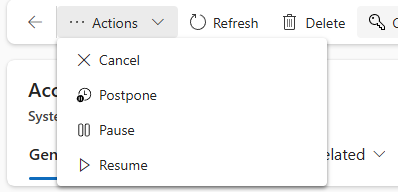
This option to pause/resume etc. the job seems interesting, and I’m sure the Cancel option would come in useful if you realise after you’ve started the job that it’s deleting things you didn’t want it to!
Speaking of which, this option to restore all records or individual records that the job has deleted will also come in handy I’m sure!

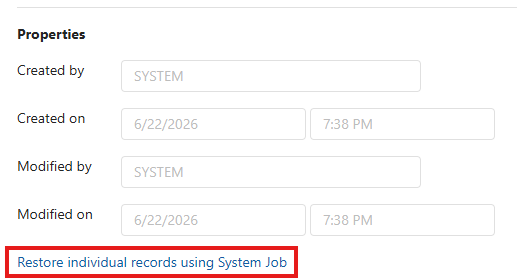
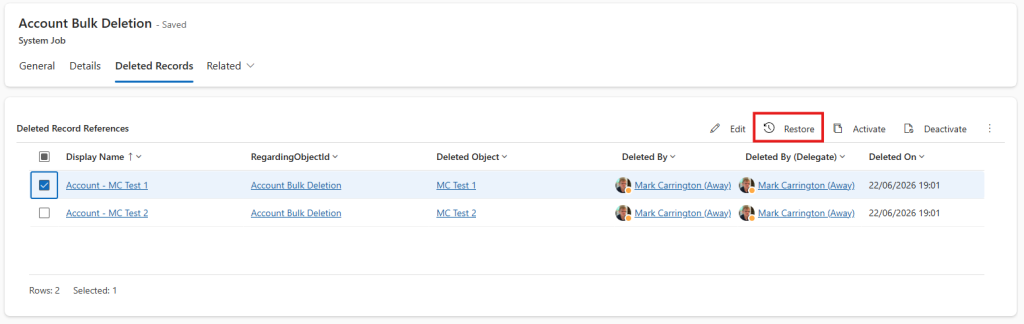
If you don’t have the option enabled to be able to restore deleted records, the “Restore” button won’t be shown in the top ribbon. The “Restore individual records using System Job” link will still be shown but it won’t show any records that you can restore.
Not sure if I should comment over here, but in my company the bulk deletion jobs aren’t working anymore with SQL 4 CDS. Previously it worked perfect, but today I tried (a few weeks since last time) and it didnt work anymore. The queries are running in xrmtoolbox itself and aren’t creating the jobs.
Could you create an issue with any details at https://github.com/MarkMpn/Sql4Cds/issues please?